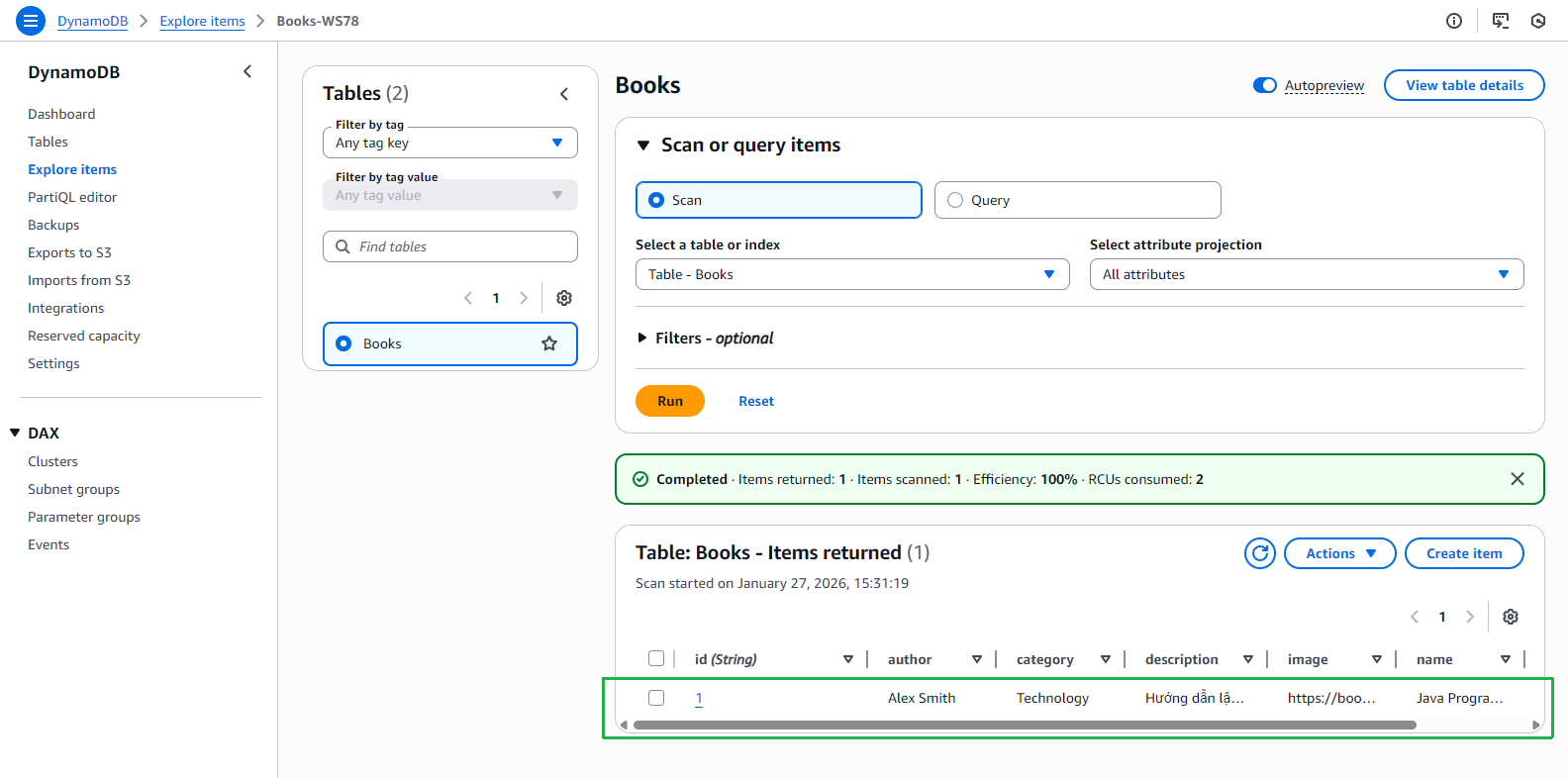
Tạo Lambda Function để Ghi dữ liệu
Tạo Lambda Function mới
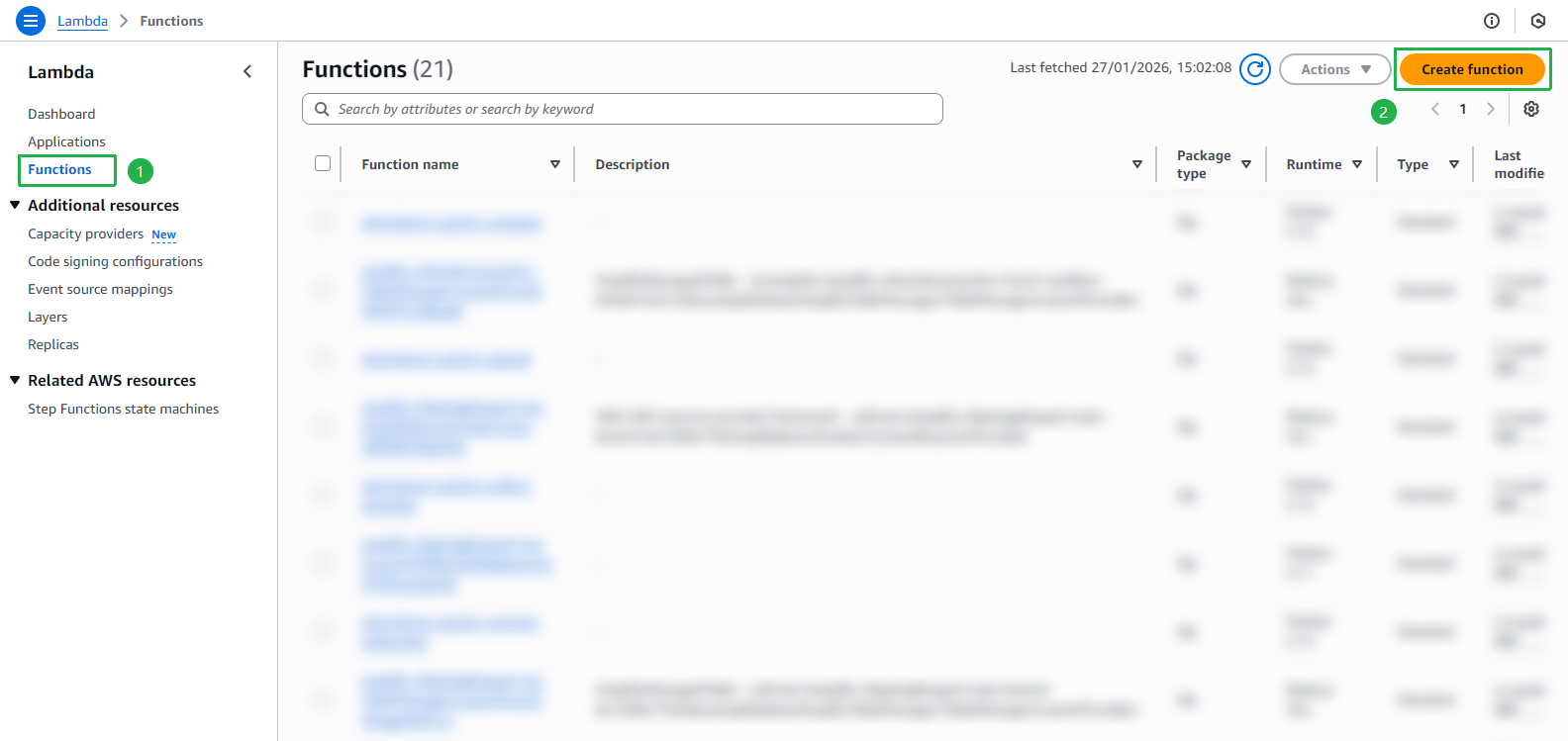
- Truy cập AWS Lambda Console
- Chọn Functions từ thanh điều hướng bên trái
- Nhấn nút Create function
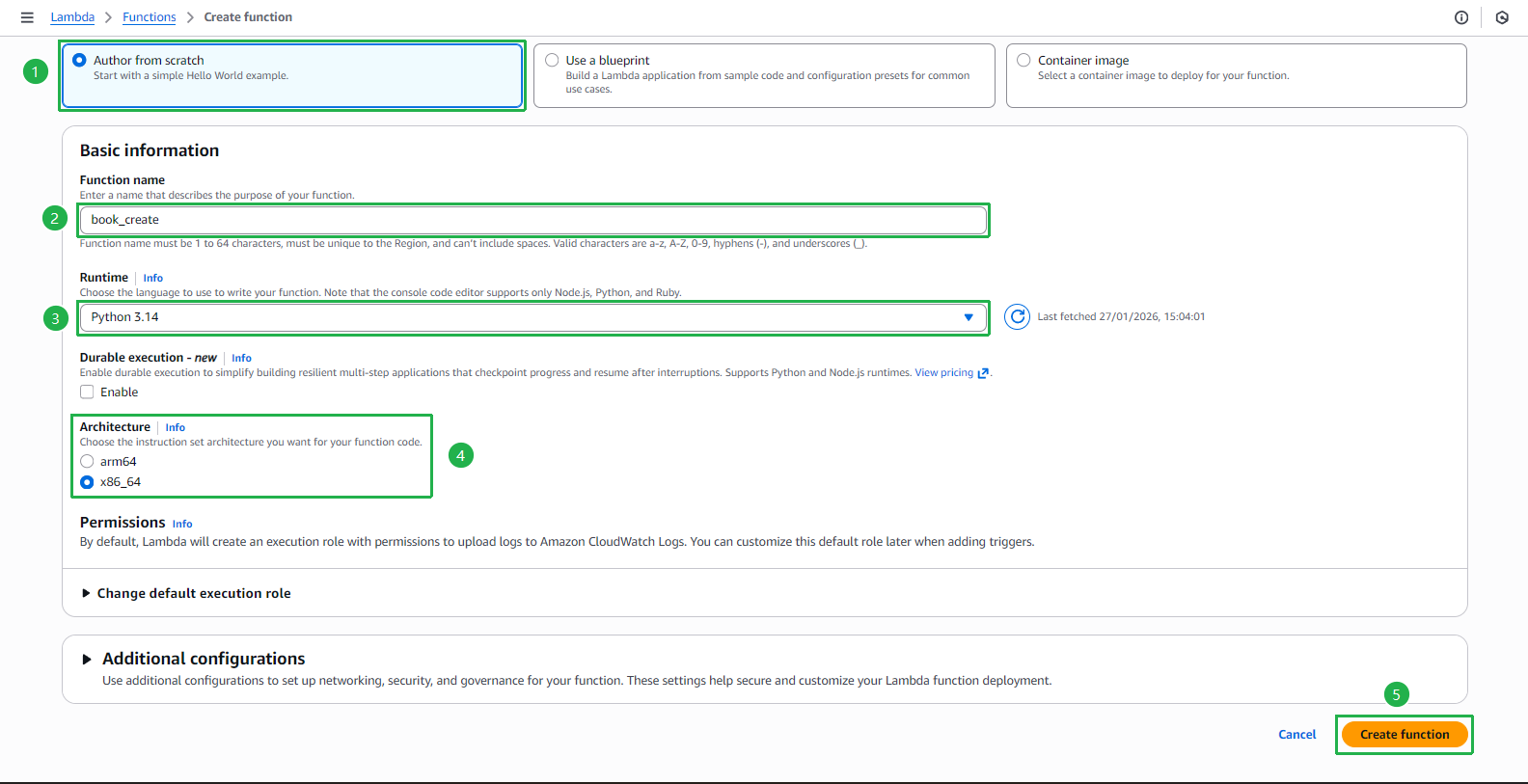
- Trong trang Create function:
- Chọn Author from scratch
- Đặt tên function:
book_create - Chọn Python 3.14 làm Runtime
- Chọn Architecture: x86_64
- Nhấn Create function
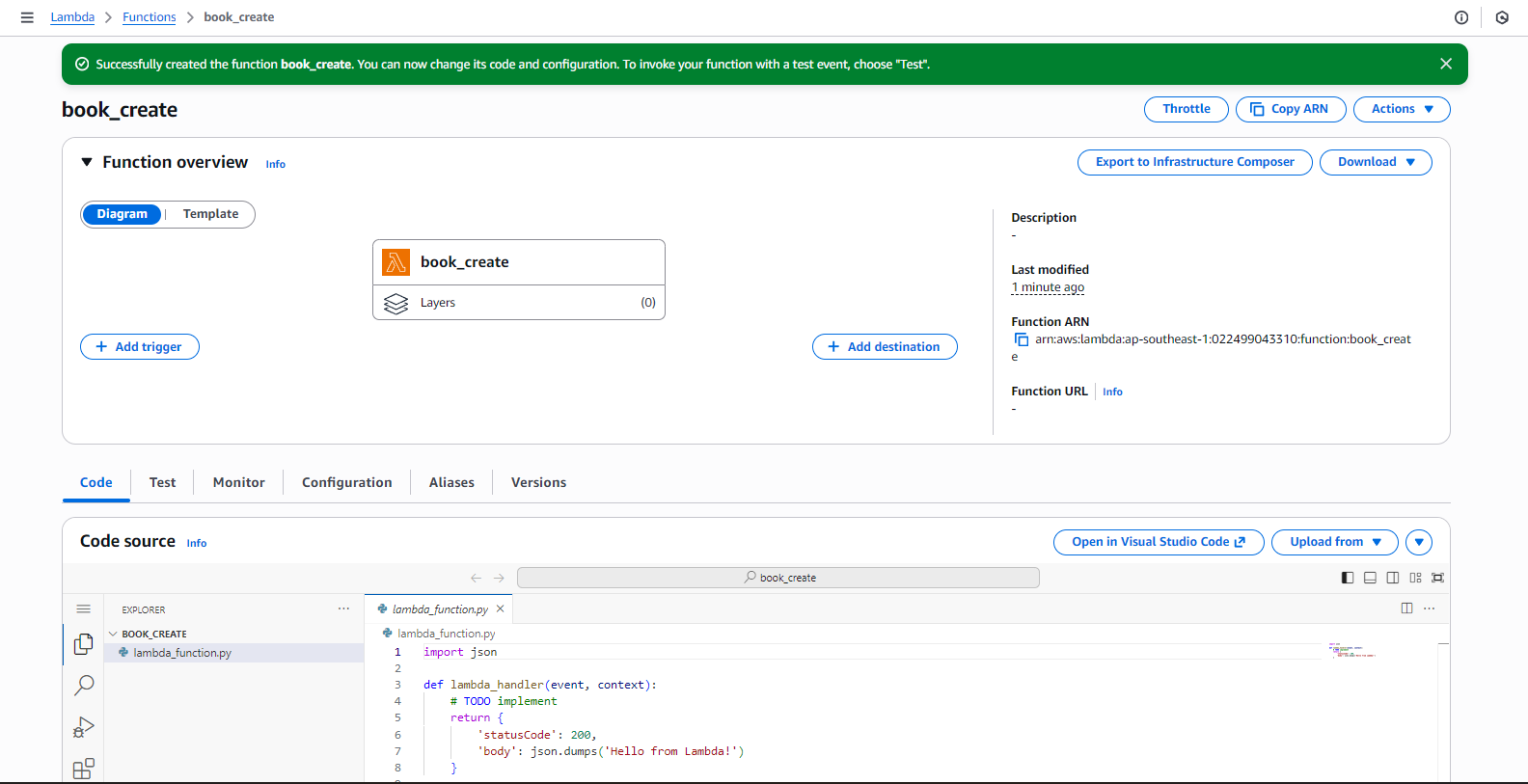
- Function được tạo thành công
Cấu hình Function
- Trong giao diện function book_create:
- Paste code sau vào editor lambda_function.py:
import boto3
import json

dynamodb = boto3.resource("dynamodb")
table = dynamodb.Table("Books-WS78")

def lambda_handler(event, context):
    try:
        body = event.get("body")

        # Handle both API Gateway (string) and test event (dict)
        if isinstance(body, str):
            book_item = json.loads(body)
        elif isinstance(body, dict):
            book_item = body
        else:
            raise ValueError("Invalid request body")

        table.put_item(Item=book_item)

        return {
            "statusCode": 200,
            "body": json.dumps({
                "message": "Data successfully written to DynamoDB!"
            }),
            "headers": {
                "Content-Type": "application/json"
            }
        }

    except Exception as error:
        print("Error:", str(error))
        return {
            "statusCode": 400,
            "body": json.dumps({
                "message": "Failed to write data to DynamoDB.",
                "error": str(error)
            }),
            "headers": {
                "Content-Type": "application/json"
            }
        }
Chú ý đổi tên DynamoDB trên code thành tên bảng DynamoDB mà bạn đặt.
- Nhấn Deploy để lưu thay đổi
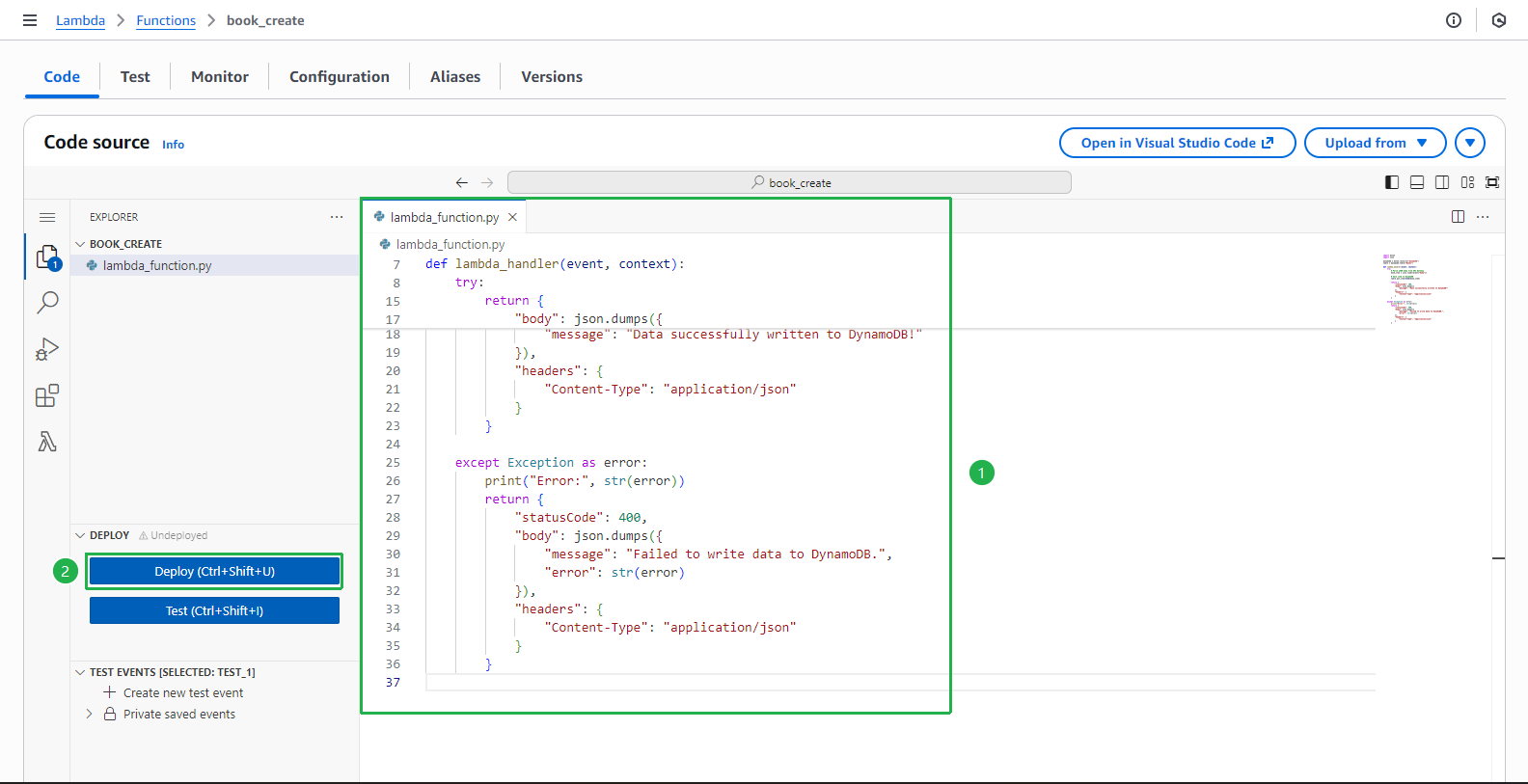
Cấu hình IAM Permissions
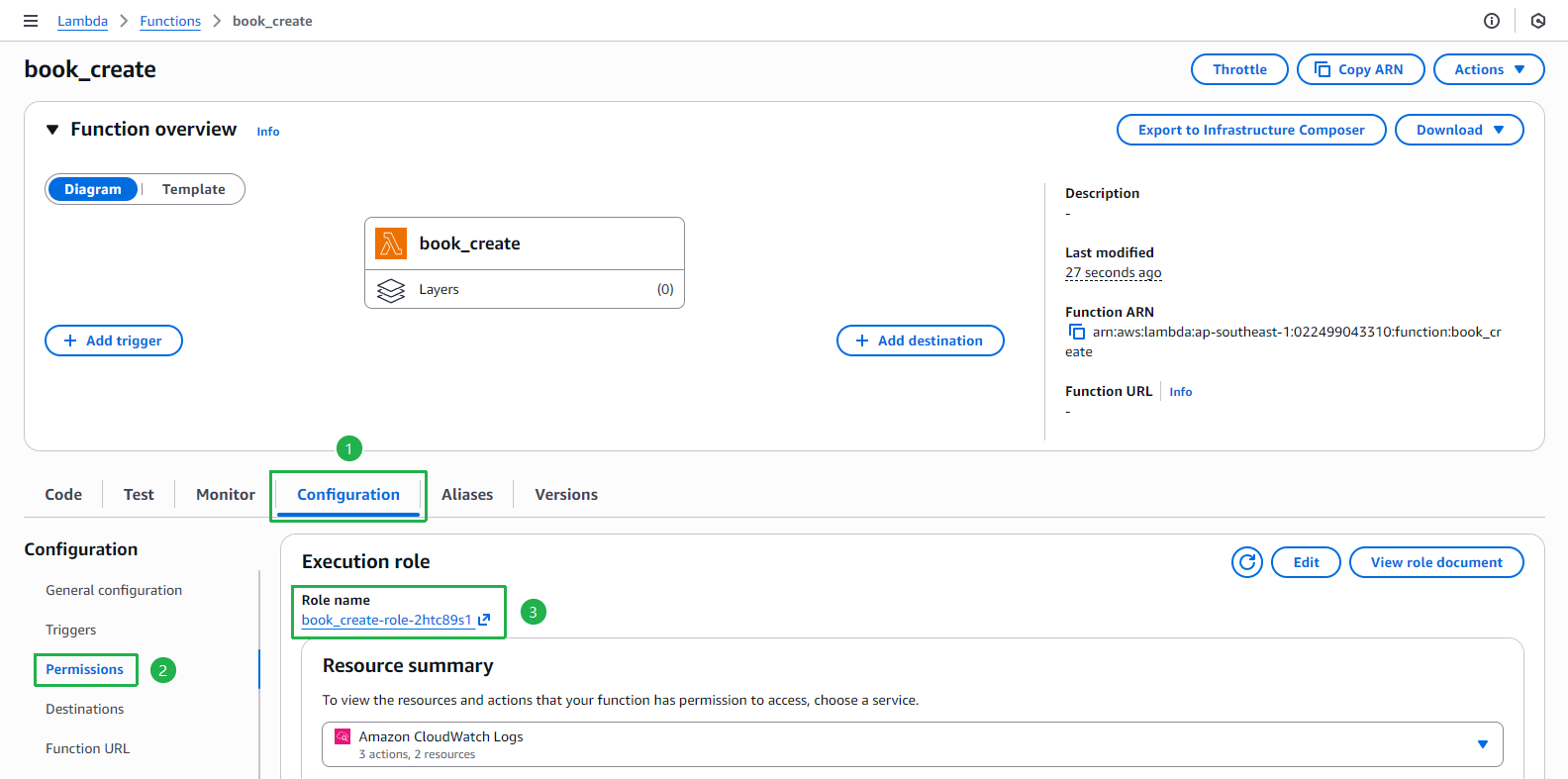
- Thêm quyền truy cập DynamoDB:
- Chọn tab Configuration
- Chọn Permissions từ menu trái
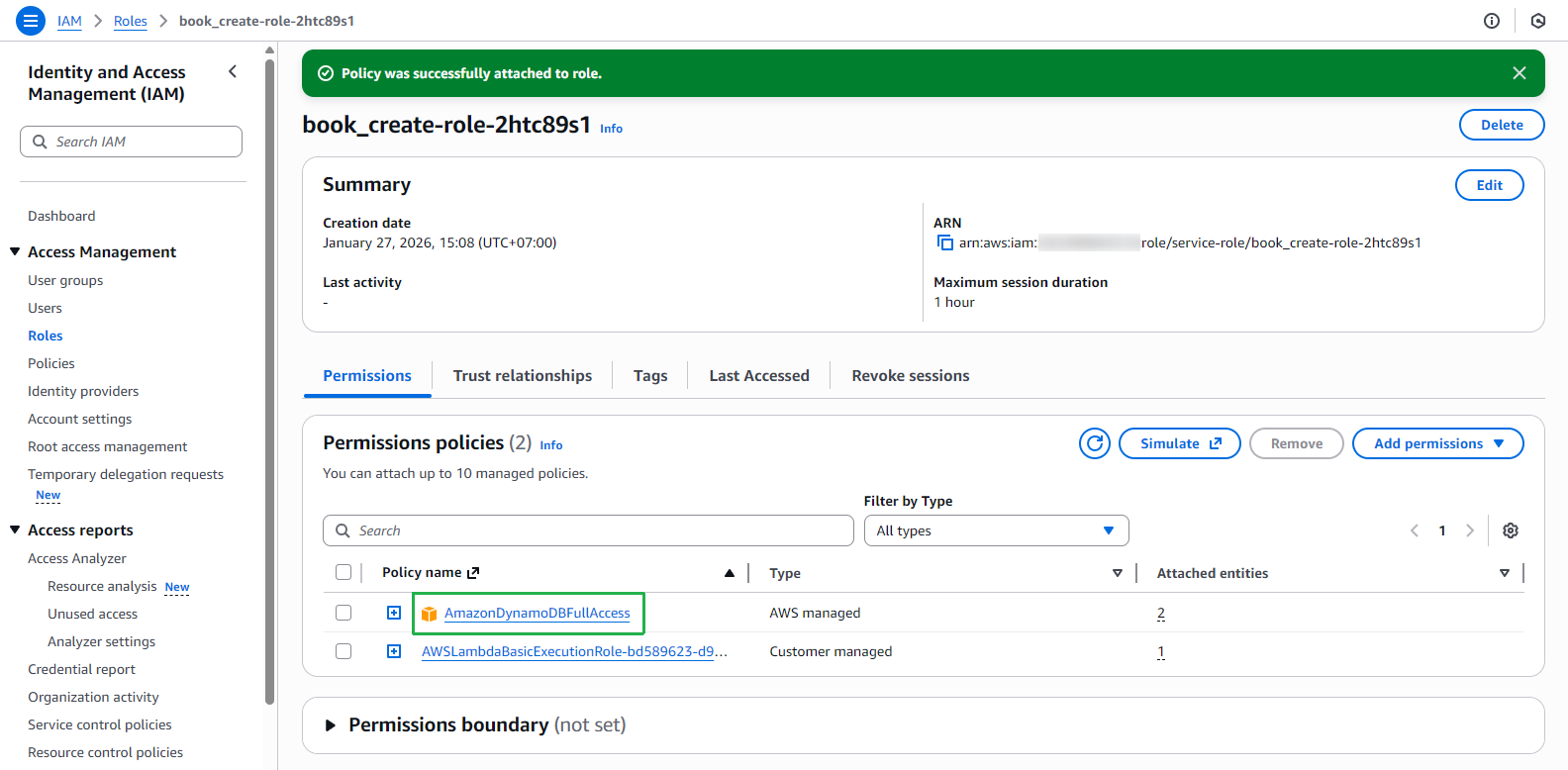
- Nhấn vào role của function
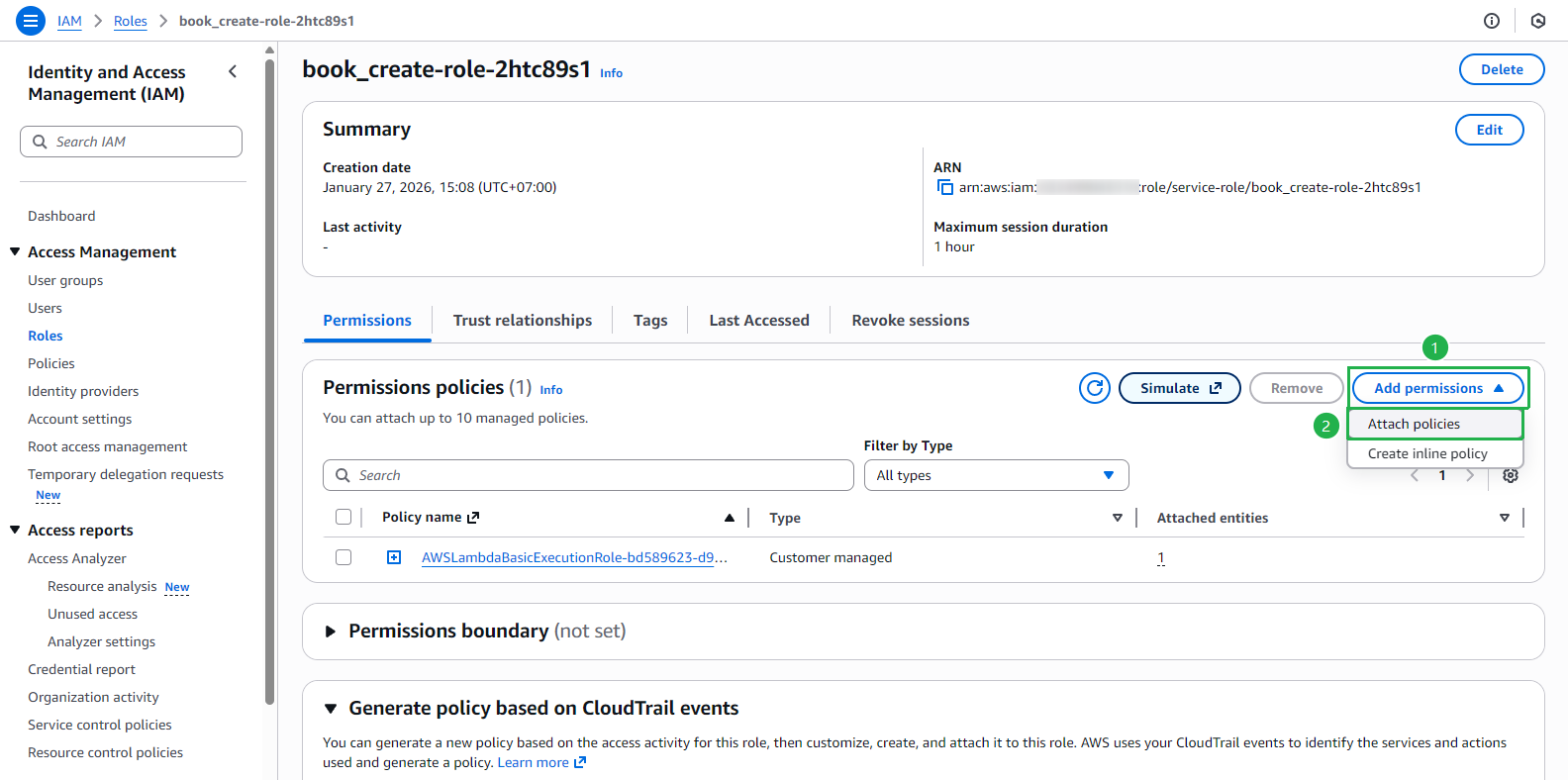
- Trong trang IAM Role:
- Chọn Add permissions
- Chọn Attach policies
- Tìm và chọn policy AmazonDynamoDBFullAccess
- Nhấn Add permissions
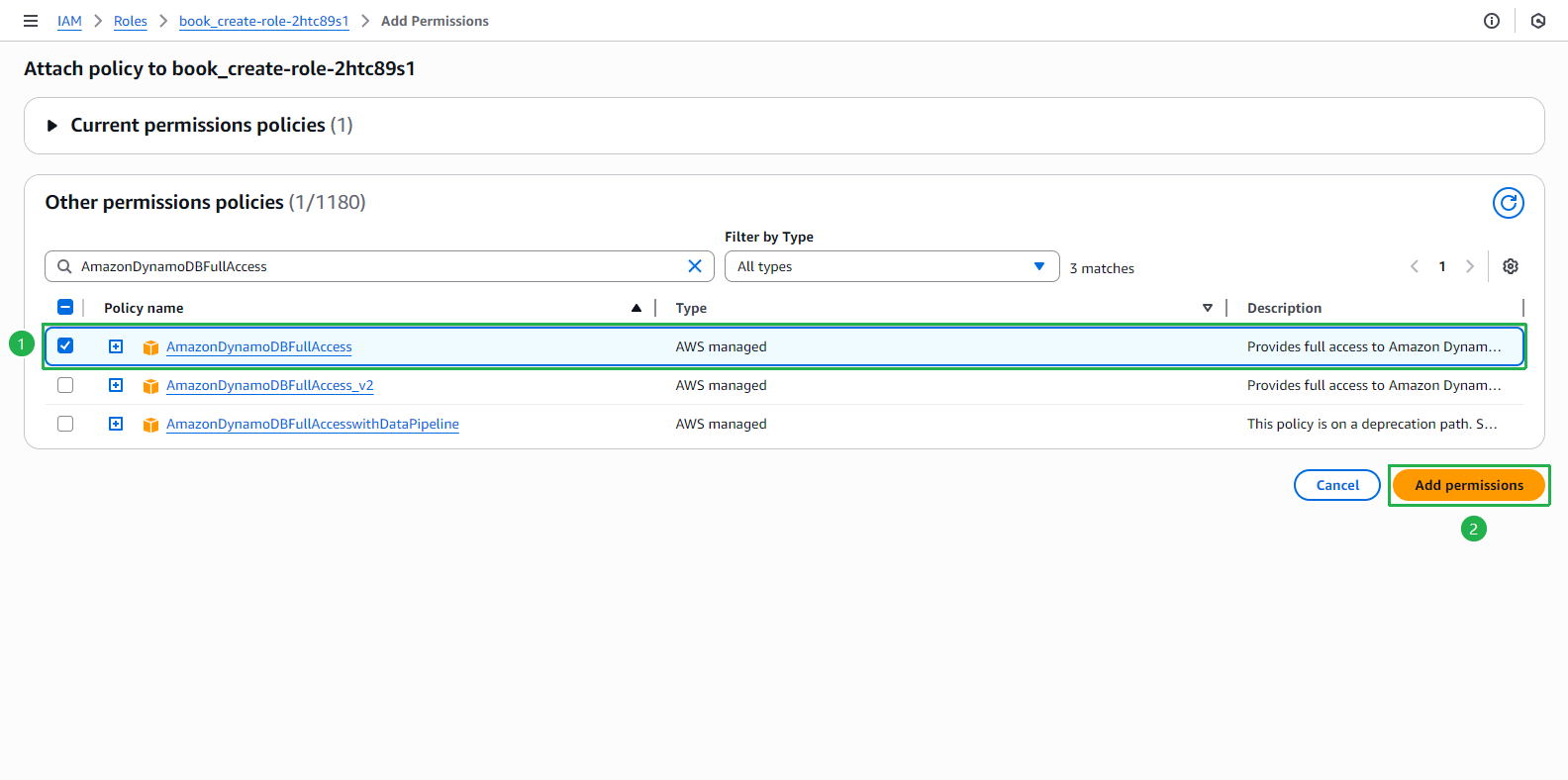
- Policy được attach thành công
Kiểm tra Function
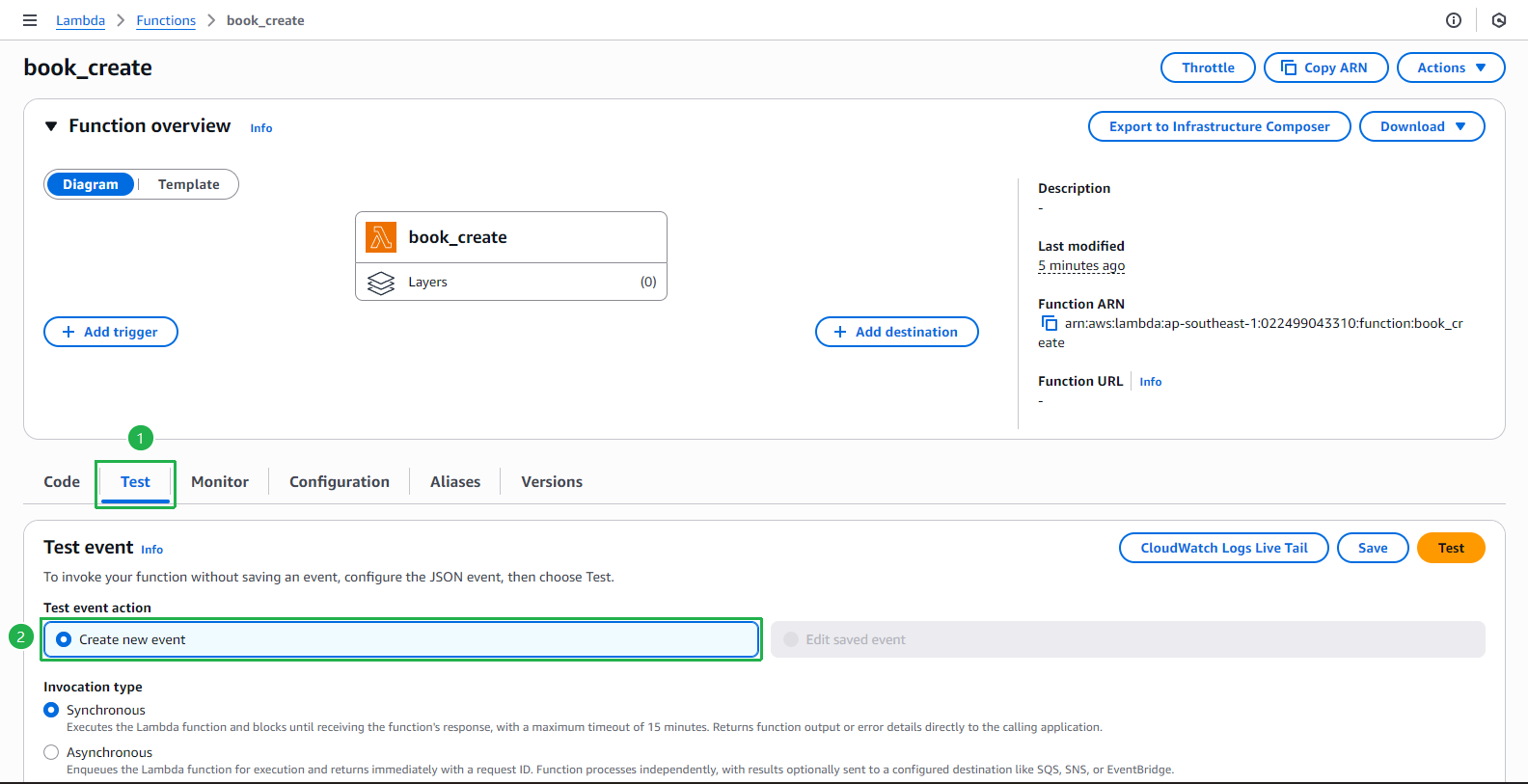
- Tạo test event:
- Chọn tab Test
- Chọn Create new event
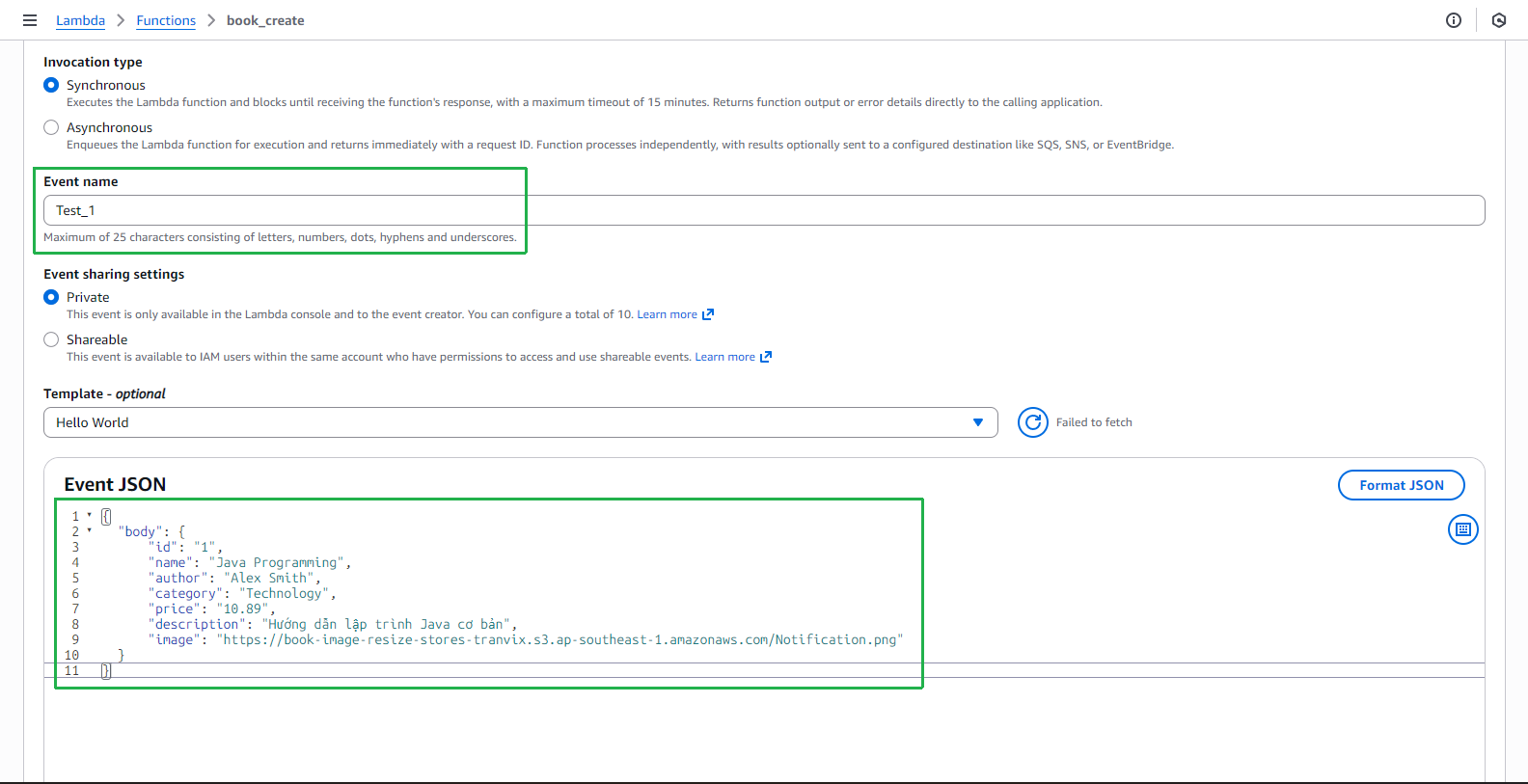
- Cấu hình test event:
- Đặt tên event:
Test_1 - Nhập JSON test sau:
{
  "body": {
      "id": "1",
      "name": "Java Programming",
      "author": "Alex Smith",
      "category": "Technology",
      "price": "10.89",
      "description": "Hướng dẫn lập trình Java cơ bản",
      "image": "https://book-image-resize-stores-tranvix.s3.ap-southeast-1.amazonaws.com/Notification.png"
  }
}
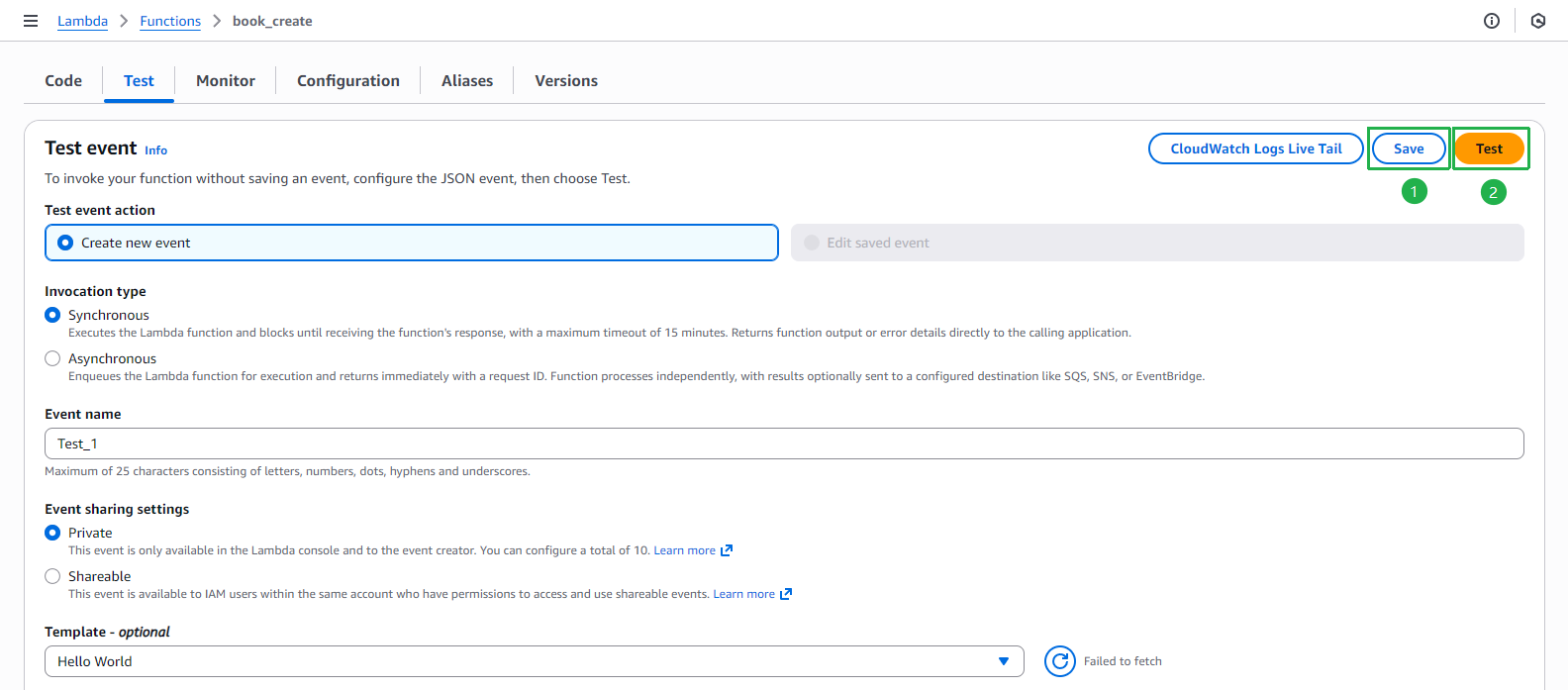
- Nhấn Save và Test
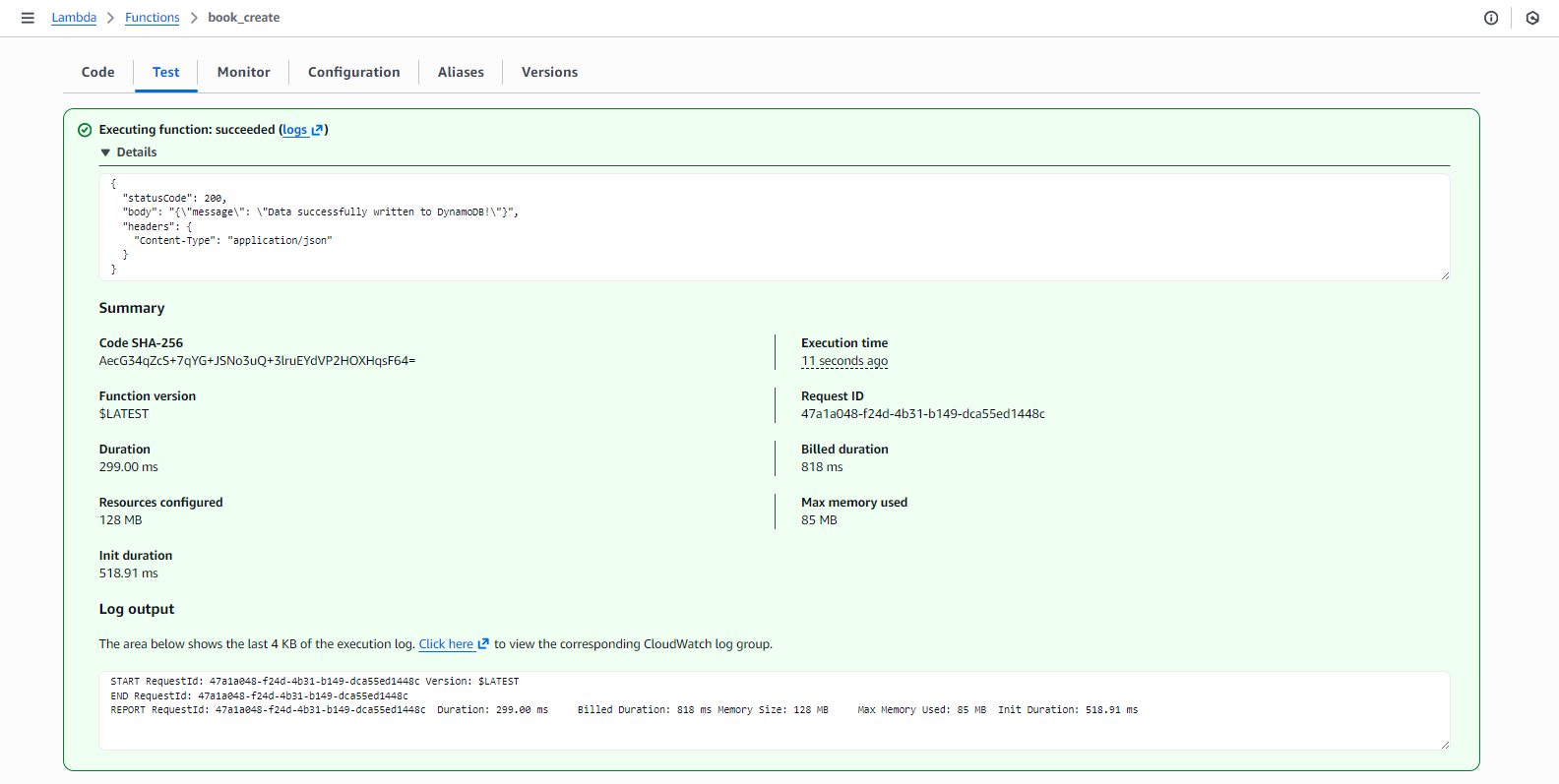
- Kiểm tra kết quả test - Function thực thi thành công
Xác nhận dữ liệu trong DynamoDB
- Truy cập DynamoDB Console:
- Chọn Tables từ menu trái
- Chọn bảng Books
- Chọn Explore table items
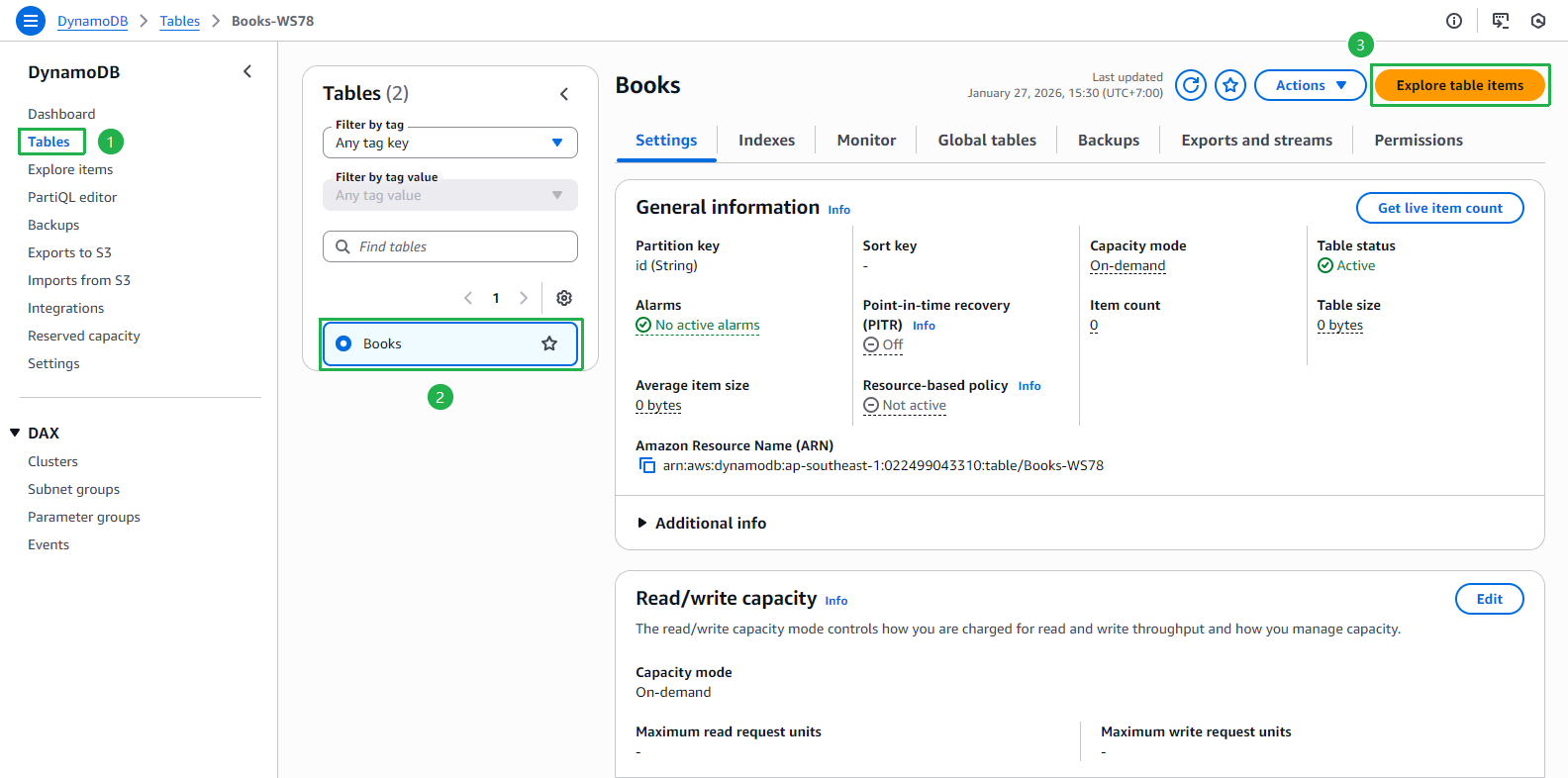
- Kiểm tra dữ liệu đã được thêm vào bảng Books